
Fleet
Car overview
One screen for one car: what it is doing right now, what comes next and the buttons for the next step. Open it from the menu, from the search or by scanning the plate with your phone.
Last updated
The Car overview screen shows one car on one page: its plate, model, status, mileage and fuel, what it is doing right now (on a contract, checked in, in another activity or free), what is planned next, and the buttons for the next step, such as checking the car in, closing the contract, issuing the car to a waiting customer or recording a damage.
It is made for people standing next to a car with a phone or tablet: the counter agent taking a car back, yard staff preparing and moving cars, the station manager walking through the car park. On a phone you do not have to type anything. Point the camera at the licence plate and Renteon opens the overview of that car.
Renteon works everything out at the moment you open the screen, from the car's activities and bookings. What you see depends on your roles and on the offices, franchises and companies you have access to. Buttons for screens you cannot open are not shown, and a contract or reservation outside your access is not named. The Car overview is available in the new interface only.
Open the car overview
You can reach the screen in four ways:
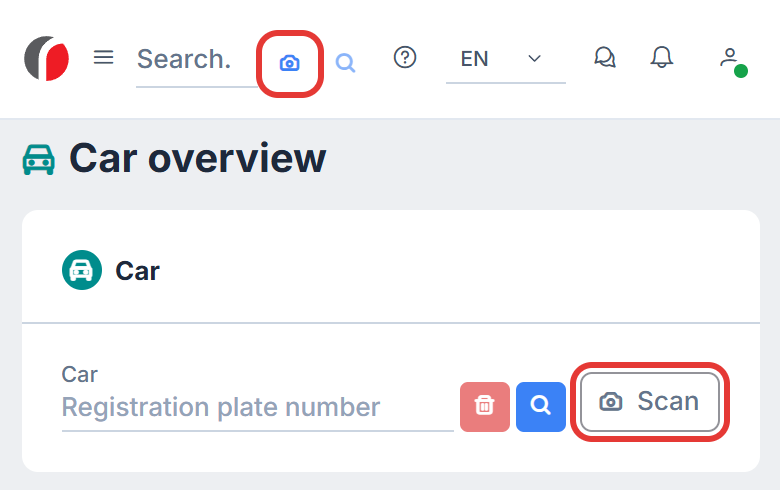
- From the main menu: Fleet → Fleet → Car overview. The screen opens with an empty Car field. Type part of the plate and pick the car, or tap Scan to read the plate with the camera.
- From the header on a phone or tablet: tap the camera icon next to the search magnifier and point the camera at the plate (see the next step). After the scan, the plate is also written in the search box.
- From the search in the header: search for a plate. In the Cars group of the results, every car has an eye icon (Car overview). Click it to open that car's overview.
- From the overview itself: pick another car in the Car field or tap Scan again. Every car you open is a new page in your browser's history, so the Back button of your browser or phone takes you back to the previous car.
To open the overview and to use the plate scanner you need one of these roles: Fleet management (the one described as "Cars list, registrations, car services, insurances...", not the one for the subrent fleet), Cars list or Booking checkin. Each button inside the screen needs its own role as well. The roles are listed with the buttons further down.
The camera icon in the header and the Scan button are shown only on phones and tablets (devices you use mainly by touch), in a browser that can use the camera. On a desktop computer they are hidden, even if the computer has a webcam.
Tip: Standing in the car park, stay on the Car overview screen and tap Scan for each car in turn. You move from car to car without going back to the menu.
Scan a licence plate with your phone
- Tap the camera icon in the header, or Scan on the Car overview screen. The first time, your browser asks whether Renteon may use the camera. Allow it.
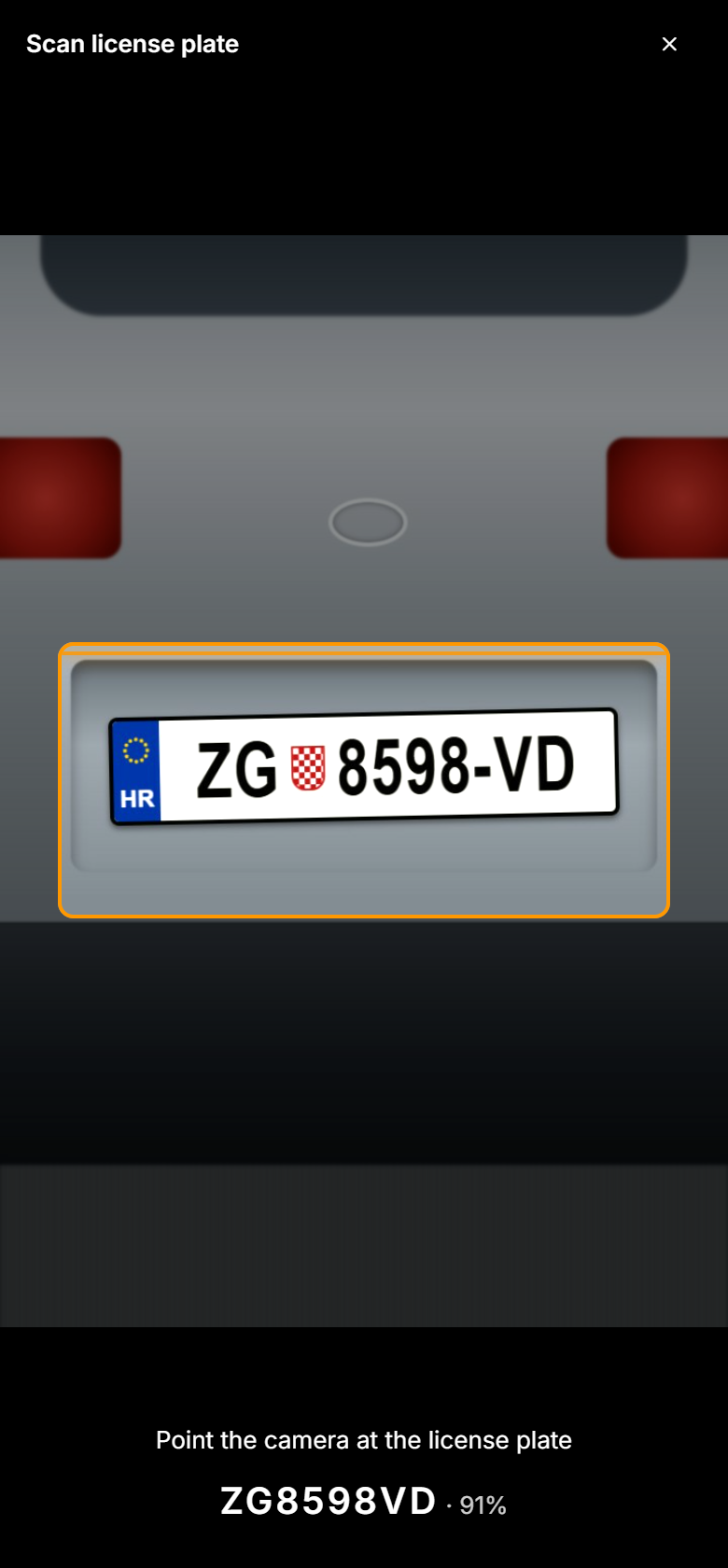
- The rear camera opens full screen with the title Scan license plate and an orange frame. Hold the phone so that the plate sits inside the frame. The message Point the camera at the license plate is shown, and a line moves up and down inside the frame while Renteon is reading.
- You do not have to press anything. Renteon sends pictures of the framed area one after another and compares each reading with your cars. Below the frame you see the plate it last read and how sure the reading is, for example "ZG1234AB · 91%". That way you can tell a plate that was read but belongs to none of your cars from a plate that could not be read at all.
- As soon as a reading matches a car, the camera closes (phones that support it vibrate briefly):
- if exactly one car matches, its overview opens;
- if several cars match, the overview opens with a Cars list and the message Several vehicles match – pick one. Tap the right car.
How Renteon matches the reading with your cars:
- Spaces, hyphens, upper and lower case and diacritics do not matter: "ZG 1234-ŠA" matches a car stored as "ZG1234SA". Cyrillic letters that look like Latin ones count as Latin, so plates stored in Cyrillic are found too.
- First Renteon looks for a car whose whole plate equals the reading. If there is none and the reading has at least 4 characters, it looks for plates that end with the reading, then plates that start with it, then plates that contain it. This is how a partly read plate can give you several cars to choose from.
- If the best reading matches nothing, Renteon also tries the other readings the recognition service suggested (for example a 0 read as an O), but accepts them only when they match a whole plate.
- Only active cars that have a plate number are searched, and at most 10 cars are listed.
- The list of plates is refreshed every minute. A car you have just added, or whose plate you have just changed, can take up to a minute to be found.
When no car is found:
- After 30 pictures without a match, the scanner stops with No vehicle with this license plate was found. Tap Repeat to try again, or close the scanner with the X and pick the car in the Car field.
- The license plate recognition service is currently unavailable means the recognition service could not be reached. Every picture goes over the internet to Renteon, so the scanner needs a working connection. Tap Repeat a little later.
- License plate recognition is not available for your company's country means the recognition service does not support plates of your company's country. Use the Car field instead.
- If you see only a warning triangle instead of the camera picture, the browser cannot use the camera, usually because the permission was refused. Allow the camera for Renteon in your browser's site settings and open the scanner again.
Tip: The scanner reads plates in the format of your company's country (the Country shown in Administration → Code book → Settings, tab Basic). A car with a foreign plate may not be recognised. Type its plate in the Car field instead.
Read the car panel
The orange Car panel at the top shows the car itself:
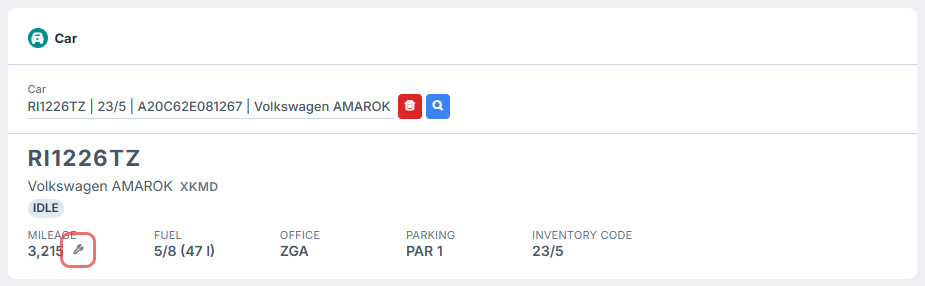
- The plate in large letters (the inventory code if the car has no plate), the car model, and the SIPP code of the car's category.
- The car's status as a coloured badge: OCCUPIED is green, MAINTENANCE orange and INACTIVE red. Other statuses, such as IDLE and NEW, are grey. A deactivated car whose status is not INACTIVE also gets a red Inactive badge.
- Mileage: the car's current mileage as recorded by its activities.
- Fuel, Electricity and Gas: one entry for every tank the car's fuel type has. A plug-in hybrid shows both Fuel and Electricity. The level is shown in eighths, followed by the amount when it is known, for example "5/8 (35 l)". A dash means there is no reading. The level comes from the same activity as the mileage: the check-in reading once the car is checked in, the hand-over reading while it is out, and the last return reading while it is free.
- Office and Parking: the codes of the office and the parking the car is at.
- Inventory code: shown in this list when the car has both a plate and an inventory code.
Next to the mileage, users with the Vehicle mileage correction role see a wrench icon (Car mileage and fuel correction). It opens the correction window on the activity whose reading is the car's current mileage, so the correction changes the number you see. The window shows the recorded values (Old) next to the fields for the new ones (New), such as KM OUT and Fuel OUT (1/8). You enter the tank levels in eighths, and Renteon works out the amount from the car's tank size. A tank whose size is not filled in on the car has no fields here. A Remark is required. Click Confirm to save, and the overview refreshes.
- While the car is free, the window opens on the last activity that occupied the car (usually the last rental). That activity is closed, so you can correct both its OUT readings and its return (IN) readings. The return reading is the one that becomes the car's mileage.
- While the car is on a contract or in another activity that is not closed yet, also after a check-in, only the OUT readings can be corrected. After the check-in, the IN readings are shown for information, and the new KM OUT may not be higher than the mileage recorded at check-in. Otherwise saving stops with OUT mileage must be less than or equal to IN mileage. Because the mileage shown is then the check-in reading, the number next to the wrench does not change after an OUT correction. That is expected.
- The wrench is not shown for an inactive car, for a car without activities, or when the activity belongs to a contract you have no access to.
- A correction cannot be edited or deleted. A wrong one is fixed with another correction. All corrections are listed in Fleet → Fleet → Car mileage and fuel corrections.
See what the car is doing right now
The Right now panel describes the car at this moment. Renteon decides the situation each time you open the screen. The first rule that applies wins:
- The car is deactivated: the panel only says Inactive.
- The car has no activities at all (a new car): The car has no activities yet.
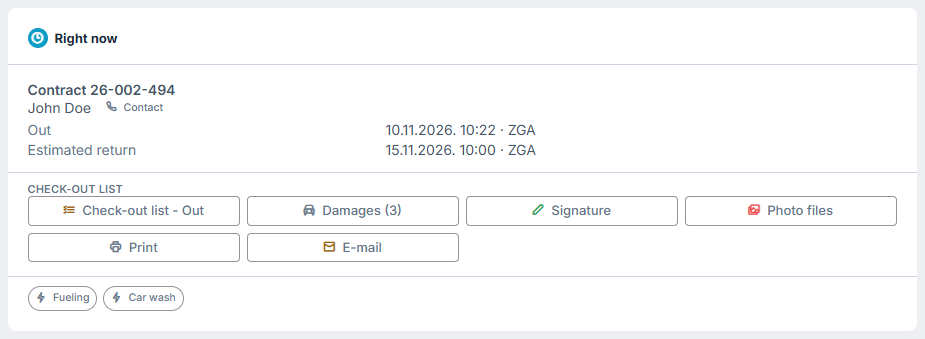
- The car is on an open rental contract (also as the replacement car of a vehicle replacement), checked in or not: the contract details below.
- The car is in another activity that has started and not yet ended, for example a service, a transfer or a cleaning. A service recorded from 08:00 to 16:00 counts as "right now" at 12:00, even though it is already saved with its end time.
- Otherwise the car is free: Idle since shows when it became free, and Office shows where.
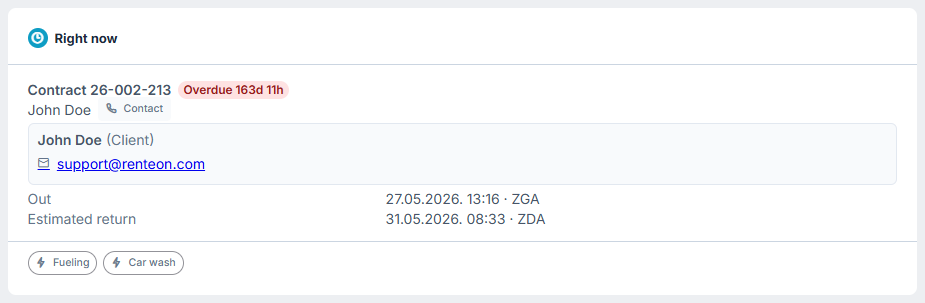
For a car on a contract, the panel shows:
- Contract with its number, and the client's name.
- Out: the date and time and the office of the hand-over. Estimated return: the expected return date and time and the return office.
- A red Overdue badge when the expected return has passed and the car is not checked in yet. If a contract is due back at 20:00 and you open the overview at 21:30, the badge reads "Overdue 1h 30m". From one day late the minutes are left out, for example "Overdue 2d 3h". The same badge appears on another activity that is past its expected end. An overdue car also counts as available for new bookings from its expected return, so update the estimated return when a customer is late (see How availability is calculated).
- A Contact button next to the client's name. Tap it to see the phone numbers and e-mail addresses of the client and the drivers, each marked as client or driver. A client who is also a driver is listed once. Tap a number to call it, or an address to write an e-mail. Agencies and commissioners are not listed. Tap Contact again to hide the list. You need one of these roles: Booking overview, Create and modify bookings, Booking checkin or Fleet management.
- After the check-in: Date IN checkin and the note Checked in, contract not closed yet. The overdue badge is no longer shown, because the car is back.
If you have the Booking checkin role and the check-in screen cannot take this car, a yellow note tells you why:
- The car has more than one open contract. Check-in is not possible until only one is left. Close or correct the extra contract first.
- The car is due back at an office you have no access to, so check-in is not available here. None of the contract's offices (hand-over, expected return or return office) is one of the offices you work in.
If the contract belongs to a booking you have no access to (another franchise, company or office), the panel only shows that the car is on a contract, without number, client, dates or contract buttons.
For a car in another activity, the panel shows the activity type (for example "Service"), the Overdue badge when it is late, Out and Estimated return.
Below these details, users with the Car activity edit role see a button for every active car activity type that has Add to quick menu ticked (in Fleet → Fleet → Car activity types). The buttons are ordered by the type's Sort order, then by name. Tapping one opens a new activity of that type for this car, and nothing is saved until you save that form. The buttons are shown whatever the car is doing. Renteon refuses an activity that does not fit the car's current situation.
Tip: Mark the activities your yard staff record most often, such as cleaning or refuelling, with Add to quick menu. They then appear as one-tap buttons on every car's overview. On some built-in activity types the box is locked and cannot be changed.
Finish the hand-over from the check-out block
When a car is on a contract that is not checked in yet, whose hand-over time is less than 6 hours before or after now, and you have the Booking checkin or Create and modify bookings role, the contract part of Right now gets a Check-out list block. It contains the same buttons and windows as the Check-out list tab of the dashboard, so you can finish the paperwork next to the car. If a car was handed over at 09:00, the block is shown until 15:00. The 6 hours are counted from the hand-over time, not by calendar day: a car handed over at 23:50 and scanned at 00:10 is still in its hand-over.
The colour of each icon shows how far that part is done:
- Check-out list - Out opens the check-out checklist of the car. The icon is green when the checklist is filled and yellow when it is not. When you save the checklist, the signature window opens straight away.
- Damages opens the car's open damages in a window, without leaving the overview: the External damages and Internal damages schemes, each with its list. The number of open damages is shown in brackets, for example Damages (2). The window has its own Print button, and users with the Damage entry role can add a damage there. A damage you add from this window is dated one minute before the hand-over time. You can change the date in the damage form.
- Signature opens the signatures of the contract. The icon is green when the contract is fully signed, yellow when it is partly signed and red when it is not signed.
- Photo files opens the check-out photos, with the same green, yellow or red icon. It is shown only when Enable CheckIn and CheckOut photos is ticked in Administration → Code book → Settings, tab Bookings.
- Print opens the contract in the print preview.
- E-mail opens the e-mail window for sending the contract. The icon is green when the contract has already been sent by e-mail and yellow when it has not.
While the checklist is not filled or the contract is not fully signed, the main button at the bottom of the screen is Check-out list. It opens the checklist if that is still empty, and the signatures otherwise. Once both are done, the main button moves on to the next step. The whole check-out procedure is described in Vehicle check-in and check-out.
Tip: The overview refreshes itself after you save the checklist, a signature, photos or a damage, after you send the e-mail and when you close the damages window, so the icon colours show the current state.
Check what comes up next
The Up next panel appears when something is planned for the car:
- Reservation with its number, the client and the Pickup date, time and office. This is the earliest reservation that has this car reserved, whose pickup is no more than 6 hours in the past, so a customer who is running late is still shown. A reservation that is only for the car's category, without this car reserved on it, is not shown. On-request reservations and reservations you have no access to are not shown either.
- The next planned activity of the car that has not started yet, for example a service booked for tomorrow, with its Out date and time. Idle periods do not count as planned activities.
If the car is free and the reservation's pickup is less than 6 hours before or after now, the main button becomes Issue car (see the next step).
Use the action buttons
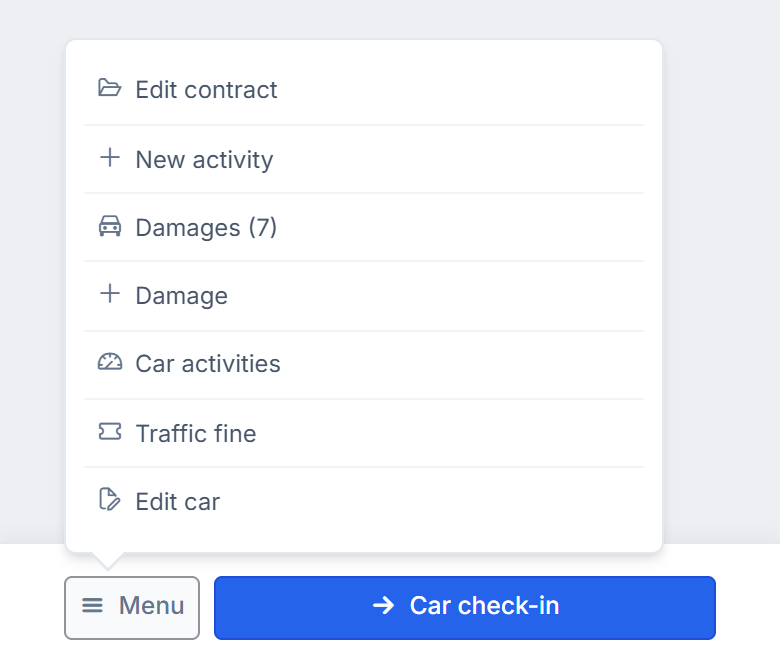
The buttons are at the bottom of the screen. The highlighted one at the right end is the main button: the most likely next step for the car's situation. The others come before it, the most important first. On a phone the main button stays on the bar and the others fold into the Menu button. When there is no main button, the first of the others stays on the bar.
The main button depends on what the car is doing:
- On a contract, hand-over not finished: Check-out list (see the previous steps). While Renteon is still loading the check-out data, no main button is shown for a moment.
- On a contract otherwise: Car check-in opens Sales → Bookings → Car check-in with this car already selected. It is offered only when the check-in screen can take the car (exactly one open contract in your offices) and you have the Booking checkin role.
- Checked in: Close contract opens the closing of the contract. Roles: Booking overview or Create and modify bookings.
- In another activity: Open activity opens that activity. Role: Car activity edit.
- Free, with a reservation picked up within 6 hours before or after now: Issue car opens the reservation already switched to a contract. The pickup time is set to now (on a booking with delivery, the pickup time is left as it is) and the pickup office is set to the office you are signed in to. The car you scanned is put on the contract if it is still free for the rental period. If it is not, Renteon shows Reserved car is not available. Please select some other car. Check the details and complete the contract as usual. Nothing is saved until you save the contract. If the reservation was made for another pickup office, Renteon first asks: You are trying to issue a vehicle in an office different than reservation. Are you sure? Roles: Booking overview or Create and modify bookings.
The other buttons, in the order they appear. Each one is shown only if you have the role in brackets:
- Edit contract opens the contract the car is on (Booking overview or Create and modify bookings).
- Car check-in when it is not the main button: after the check-in, to review or correct the return before you close the contract, or while the hand-over is still being completed. As with the main button, only when the check-in screen can take the car (Booking checkin).
- New activity opens a new activity form for this car (Car activity edit). Not offered for an inactive car.
- Damages opens the Damages tab of the car's card. The number of open damages is shown in brackets (Fleet management, Damage entry, Booking overview, Create and modify bookings or Booking checkin).
- Damage records a new damage in a window, without leaving the overview. The damage is dated now (change the date if it happened earlier) and is linked to the contract or activity the car is on at the moment. When the car is free, the form looks the activity up from the damage's date and time, so check it before you save. The overview refreshes after you save (Damage entry).
- Car activities opens the car's list of activities (Car activity edit).
- Traffic fine opens a new traffic fine with this car filled in. If the car is on a contract or in another activity, the fine is linked to it, and its date is set to one minute after that activity started. Enter the real date and time of the offence. When the car is free, enter the date and time of the offence and check the activity in the form. When you save the fine, or cancel it, you come back to the overview (Trafic fines edit).
- Edit car opens the car's form, ready for editing (Fleet management).
For damages and traffic fines in detail, see Damages and Traffic fines processing.
Typical situations
- A customer returns a car at the counter. The contract was due back at 20:00, and the customer arrives at 21:30. Scan the plate: Right now shows the contract, the client and "Overdue 1h 30m". Tap Car check-in and record the return. When you open the overview again after saving the check-in (with Back, or by scanning the car again), the main button is Close contract.
- You have just handed over a car. Scan it while you are still at the car: the Check-out list block shows what is missing. The checklist and the signature icons stay yellow or red until they are done.
- A customer is waiting for a reserved car. Scan the car in the car park. If the car is free and has this reservation, Up next shows the reservation, and the main button is Issue car.
- Yard work. Walk along the row and scan car after car. Each overview shows the status, fuel level, parking and, on the Damages button, the number of open damages. The quick activity buttons open a cleaning or refuelling activity for the car with one tap.
- A quick question at the desk. Search for the plate in the header search and click the eye icon next to the car.
When something looks wrong
- The data is not up to date. The overview reads the car when you open it, and refreshes itself after you save a damage, checklist, signature, photos, e-mail or mileage correction from it, and when you close the damages window. After working in other screens, scan the car again (scanning the car that is already on screen reads it again) or reload the page.
- "Record not found" means the car does not exist in your company, for example after following an old link. If the car could not be loaded for another reason, tap Repeat.
- A button you expect is missing. Each button needs its own role, and some only appear in a certain situation, for example Issue car only for a free car and within 6 hours of the reservation's pickup. Ask your Renteon administrator to check your roles and the offices you have access to.
- No camera icon or Scan button. The scanner is shown only on phones and tablets, and only with one of the roles Fleet management, Cars list or Booking checkin.
- A reservation you expect is not in Up next. Up next shows only a reservation that has this very car reserved on it, that is not on request and that you have access to. A reservation for the car's category without a reserved car does not appear, and neither does Issue car.
- Papers, expiry dates and GPS position. The Car overview does not show the car's registration, insurance or other papers, or its GPS position. Open the car's card for those, see Opening a car card.
The same scan button is also available in the car field of the Car check-in screen, of the contract form, of the Vehicle replacement form and of the damage and traffic fine forms, on phones and tablets and for the same three roles. How plate recognition works and what it needs is described in Licence plate recognition.
Related guides: