Fleet
Fleet Chart
The Fleet Chart module can be accessed from the Fleet menu. It is used to assign reservations to available cars and manage vehicle assignments efficiently.
Last updated
The Fleet chart module is located in the Fleet menu.
The main parts of the fleet chart can be divided into:
- The car list
- The calendar with activities
- The filters
- Reservations list
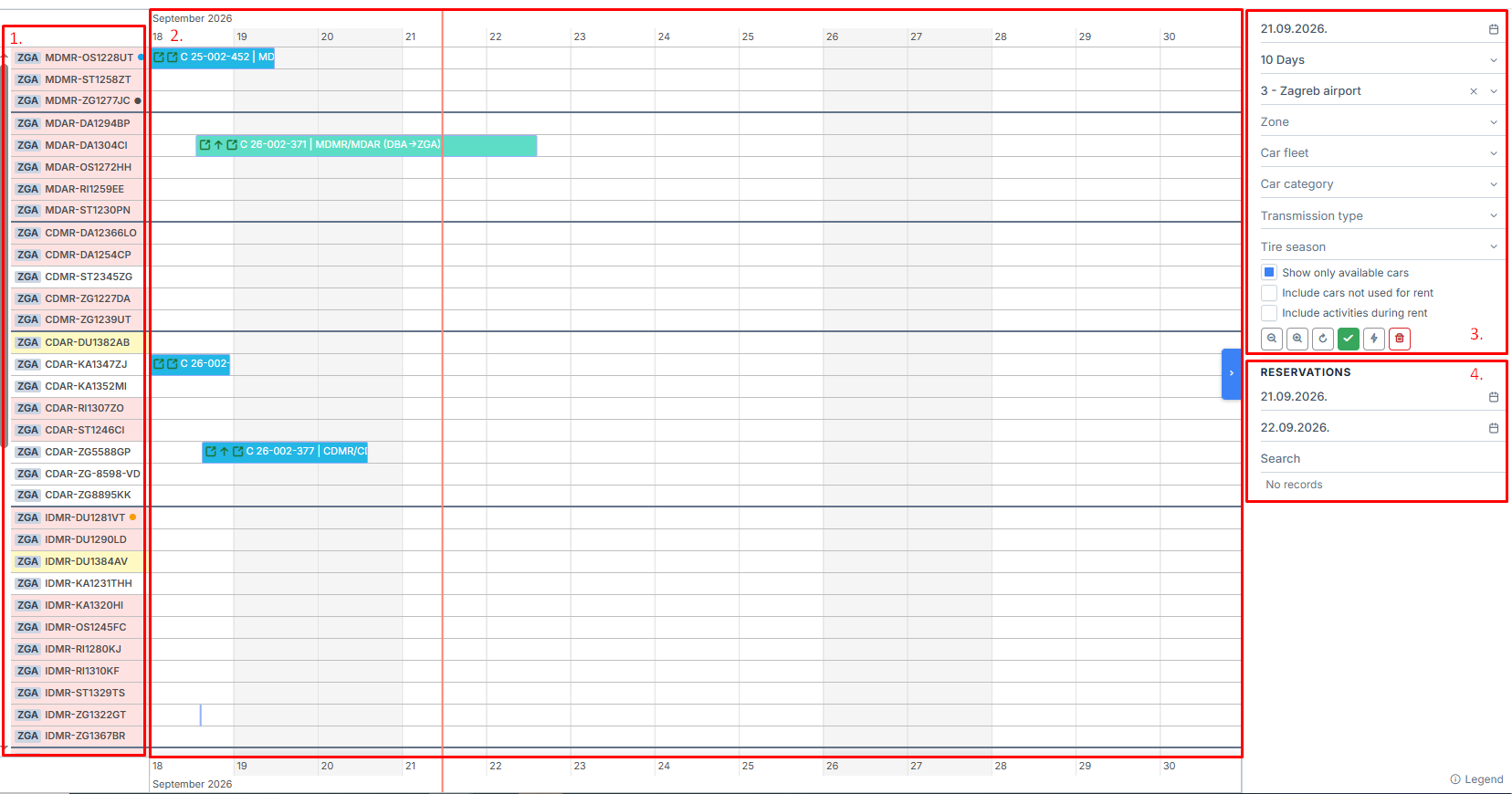
Car List
The car list shows all cars in the currently selected office. By default, this is the office where the user is logged in, but other offices can be selected in the filters section.
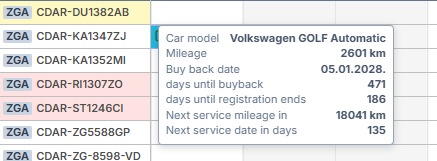
By hovering with a mouse over the license plate in the car list, the car's info, like model, buy-back date, next service, current mileage, or similar, will pop up:
Based on the registration expiry date, service interval, or buy-back date, Renteon colour-codes vehicles according to how close they are to their next registration, service, or buy-back.
Yellow
-> Expiration is within 10-30 days
->1000 km until the next service
Red
-> Expiration is within 10 days, or it has already expired
If the value is negative, for example, the service mileage value is -100, it means the due date has passed, or the kilometres have been exceeded.
Calendar
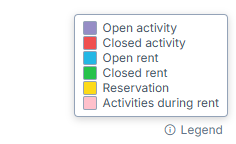
All car activities will be shown in the calendar part of the fleet chart. Each activity, open or closed, can be distinguished by its colour:
By hovering the mouse over the activity, the activity's details will pop up:
The activities can also be opened to see more details by clicking the open option on them. In the example below, the first arrow will open a booking, and the second arrow will open the rent activity:
Filters
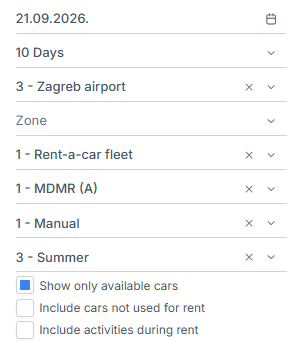
By using the filters on the right side of the screen, the overview of the fleet chart can be changed. The date filter is automatically set to today, but when changed, the calendar will be moved to that date.
The default overview shows 10 days from today, but can be set to show the next 30, 60, 180, or 365 days. Additionally, the cars can be filtered by the fleet, transmission type, car categories, offices, zones, and tyre type.
The option "Show only available“ is enabled by default, and as long as it is enabled, only available cars will show in the fleet chart. Cars that are in longer activities (usually long-term rentals) will be excluded from the fleet chart when this option is enabled.
The "Include cars not used for rent" option will include cars from fleets that are not currently used for rentals. These vehicles will be marked with a red X:
The "Include activities during rent“ option shows the activities that are open during the rent (for example, service during rent):
The filters are applied with the confirm button (green checkmark).
Reservations
Below the filters is the reservations section. Here, Renteon will list the reservations with pickup dates in the set period and for the selected offices.
The search filter can be used to find a specific booking in the reservations list.
Reservation assignment
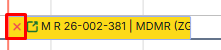
A reservation is assigned to a car by dragging and dropping it in the fleet chart. Once the reservation is assigned, it can be moved if a different car should be assigned. The reservation is removed from the assigned car by clicking the red X mark on it:
When the reservation is assigned to a car that is different from the booked car category, Renteon will add a mark for it:
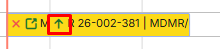
- When the assigned car is an upgrade to the booked car category, there will be an arrow pointing up:
- When the assigned car is a downgrade to the booked car category, there will be an arrow pointing down:
- If a car from the booked car category is assigned, there will be no arrows:
- If the car is activated for a future date (the opening car card date OUT is set in the future), Renteon visually shows in which period the car is unavailable:
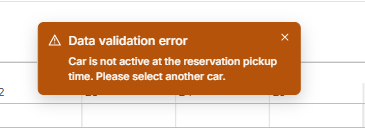
- Also, an error message will appear if the reservation period overlaps with the period before the opening car card date OUT:
Reservation Auto Assignment
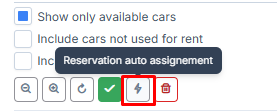
There is also an auto-assignment option in the fleet chart module. It enables automatic assignment of reservations to vehicles based on predefined parameters.
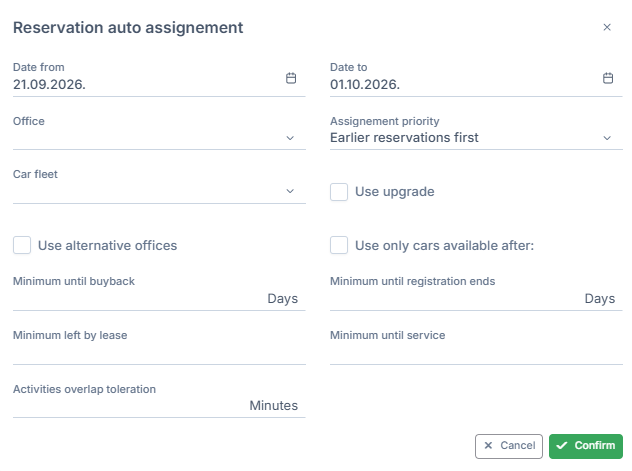
The following parameters can be defined, and only the Date from/to is mandatory:
- Office – only vehicles in this office will be assigned
- Assignment priority – defines which reservations are assigned first: earlier reservations or longer reservations
- Date from/to – reservations with pickup date in this period will be assigned
- Use upgrade – if the automatic upgrade (alternative car categories) module is enabled, the system will assign an alternative category if the originally booked one is not available
- Use alternative offices - if no cars are available in the pickup office of the reservation, the connected office will be used (if enabled in the office settings)
- Use only cars available after – if cars are not available after the specified date, they won't be assigned
- Car fleet – only cars from the selected fleet are used
- Minimum until buyback – cars with buyback less than the minimum days set won't be used in the auto-assignment (for example, if it is set to 20 days, cars that have 20 or fewer days won't be used in the auto-assignment)
- Minimum until registration ends - cars whose registration ends less than the minimum days set won't be assigned
- Minimum left by lease – cars with remaining lease mileage below the defined minimum won't be used
- Minimum until service - cars whose service needs to be done in fewer than the minimum kilometers set won't be assigned
- Activities overlap toleration – defines the allowed activity overlap in minutes. If set (e.g., 30 minutes), a reservation may be assigned to a vehicle with an overlapping activity within that limit when no other vehicles in the booked category are available
Reservations that are auto-assigned in the fleet chart can be manually moved to a different car by dragging and dropping them, if needed.