
Fiscalization
Italy: e-invoicing
How Renteon creates FatturaPA XML files for the Italian SDI: settings, the client and office data you need, what goes into the file and how to download it.
Last updated
In Italy invoices are exchanged electronically through the Exchange System (SDI) of the Revenue Agency, in the FatturaPA XML format. Renteon creates these XML files from your finance documents. You download them from the finance document list and submit them to SDI through the channel you use for that, for example your e-invoicing provider.
Renteon prepares the file and checks it against the FatturaPA rules before you download it. It does not sign the file, does not send it to SDI and does not receive SDI's receipts or rejections. Following up on a file after you have submitted it happens in your SDI channel, not in Renteon.
This guide explains the settings, the client and office data that the file needs, what Renteon puts into the file, and how to download one or many invoices at once.
Switching on electronic invoices
Go to Administration → Code book → Settings, click Edit and open the tab Fiscalization. The panel Enable electronic invoice is shown to accounts whose country is Italy. Tick the checkbox in the panel header to switch it on.
- VAT status: your tax regime code, RF01 to RF19, as your accountant gives it to you. RF01 is the ordinary regime; it is also used when the field is empty. The field is mandatory while electronic invoices are on.
- Headquarter office: the office whose address is written as your company's seat in every file (street, street number, postal code and town). If you leave it empty, Renteon uses the office of each finance document instead.
- Company - Electronic invoice: mandatory. Pick, from the address book, the company that transmits the files to SDI (only clients of type Company can be picked). This can be your own company or your intermediary. Renteon writes its VAT ID as the transmitter, its e-mail (E-mail 2 (PEC) if filled in, otherwise E-mail) and its first phone number as the transmitter's contact. This address book entry must have a VAT ID; without it no file can be created.
Click Confirm to save. You need the role Application settings management to open and change Settings.
The seller data come from Settings, tab Basic, panel Company: Name, VAT ID (with or without the IT prefix), Phone and E-mail.
Several companies in one account
If your account issues documents for more than one company, open Administration → Code book → Companies (shown when your account has more than one company; you need the role Company editing), open the company and click Edit. The company has the same panel Enable electronic invoice with VAT status, Headquarter office and Company - Electronic invoice.
On the finance document list, the download action in a row's Actions menu is offered only for documents of a company with electronic invoices switched on. The download for several ticked documents is offered as soon as one company has it switched on, and it includes every ticked document, so tick only documents of those companies. In the file, the VAT status, name, VAT ID and contacts are those of the document's company. The transmitter and the headquarter office are always read from Settings, for all companies; the same two fields on the company screen are not used for the file.
Client data the file needs
SDI identifies the buyer and decides where to deliver the invoice from the client's data. Check these fields on the client's screen (Sales → Address book → Search, open the client, Edit):
- Recipient code (Italian companies only): the seven-character SDI code of the client's receiving channel. Renteon writes it as the recipient code. Italian clients without it (including all Italian private persons) get the code 0000000, and foreign clients always get XXXXXXX.
- E-mail 2 (PEC): for an Italian company without a recipient code, Renteon makes this field mandatory, so that the client's certified e-mail is on record. The PEC address is not written into the file.
- Code - Fiscal number (Italian private persons): the client's 16-character fiscal code (codice fiscale). It is mandatory for Italian private persons. Renteon writes it into the file only if it has exactly 16 characters.
- VAT ID: for companies, artisans and anyone without a 16-character fiscal code, Renteon writes the VAT ID (without the IT prefix). Italian artisans get both the fiscal code and the VAT ID.
- Foreigner and Nationality: the tax number of a foreign client is written with the country of its Nationality (or, if there is none, the country of its address). Nationality appears on the client screen once Foreigner is ticked.
- Address: Renteon uses the client address chosen on the finance document, otherwise the client's default address: street, postal code, town, province and country. For an address outside Italy the postal code is written as 00000. A client without any address cannot be exported; the download fails.
Company clients are written with their name; private persons with their first name and surname.
For Italian private persons, Renteon can calculate the fiscal code: while you edit the client, fill in the name, surname, Gender, Date of birth and Town of birth (an Italian town from the list), then click Recalculate next to Code - Fiscal number. Renteon calculates a formally correct fiscal code from these data. Compare it with the client's tax card: in rare cases the official code differs from the calculated one.
Warning: A client without a VAT ID and without a 16-character fiscal code, for example most foreign private persons, is written with a placeholder instead of a tax number: the client's Renteon ID padded with zeros to 11 digits. Fill in the real number wherever you have it.
Office data
The seller's address in every file comes from an office (Administration → Locations → Offices, open the office): the street, Street number, postal code and town of the Headquarter office, or of the document's office when no headquarter office is set. The Province is always taken from the finance document's office, also when a Headquarter office is set, so the province of every office that issues documents must be right. For Italian accounts the office screen does not save an office without Province and Street number.
What Renteon puts into the file
Each finance document becomes one FatturaPA file in the format for private parties (B2B and B2C). Invoices to the public administration use a different format that Renteon does not create.
The document type in the file follows the Renteon document:
- invoices, bills, payouts, foreign-currency invoices and accounting notes become an invoice (TD01);
- advance payment invoices become an advance invoice (TD02);
- approvals and cancellations become a credit note (TD04);
- debits become a debit note (TD05).
For other document types the file cannot be created. A credit note does not refer to the invoice it corrects; this reference is optional in FatturaPA and Renteon leaves it out.
Further content:
- Header: currency, document date and document number. When the document belongs to a booking, the booking number and booking date are added as contract data.
- Lines: the line name and remark as the description (characters outside the Western European character set become a question mark), the quantity, the service code and name (the name cut to 35 characters), the unit price, the discount, the price after discount and the VAT rate.
- VAT summary: one entry per VAT rate (and per exemption nature), with VAT payable immediately.
- Payment: payment in full, with one entry per payment line: method, amount, due date (the document's due date, otherwise its date) and, when the payment line has a company account, the bank name and IBAN.
Every line with 0% VAT needs an exemption nature code. Renteon takes it from the Article attached to the line, so the codes of your VAT-exemption articles (Administration → Code book → Articles) must be FatturaPA nature codes such as N2.1 or N3.1. A 0% line without an article whose VAT rate is marked VAT-exempt (Administration → Code book → VAT rate) gets N1. A 0% line with neither does not pass the validation. On a line you add by hand, you can pick an article only when the line's VAT rate is marked VAT free or VAT-exempt.
Payment methods are written like this:
- Cash: cash (MP01);
- Checks and Voucher: cheque (MP02);
- Bank transfer, Transactional account, PayPal, Checkout, Eurobank ePos, STCPay, Stripe, PayTabs, Adyen and Windcave: bank transfer (MP05);
- Credit card and Credit card - preauthorisation: payment card (MP08).
A document with a payment line of any other type, for example Payment delay, Advance payment or Monri, cannot be turned into a file: the download fails with a general error that does not name the document. The same happens for a document type that has no FatturaPA equivalent (see above) and for a client without an address. If a download of several documents fails this way, download them one by one to find the document.
Downloading the XML files
Open Sales → Bills → Search and find the documents.
- One document: click Actions on its row and choose Download Electronic invoice - xml. You get one XML file.
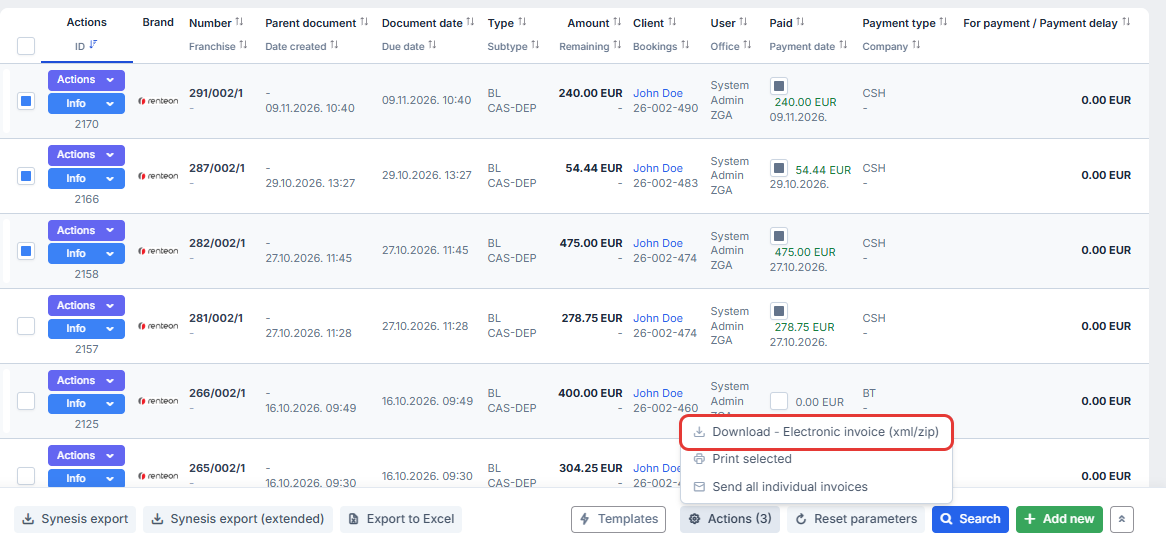
- Several documents: tick the documents in the list, click Actions with the number of selected documents, and choose Download - Electronic invoice (xml/zip). You get one ZIP file with an XML file per document. If you select only one document, you get its XML file directly.
Before the download Renteon validates every file against the FatturaPA rules. If even one document fails, nothing is downloaded and an error message lists, for each failing document, its number and what is wrong. Correct the data (usually the client or the article of a line), then download again.
Each file is named after the transmitter's VAT number and a progressive code that Renteon derives from the finance document's ID. Downloading the same document again therefore gives you the same file with the same name: it is the same invoice, so do not submit it to SDI twice.
Renteon's part ends with the downloaded file. Submit the files through your SDI channel and follow SDI's receipts there; if SDI rejects a file, correct the data in Renteon and download it again.
Related guides: