Integrations
GPS and telematics integrations
Connect Renteon to your GPS or telematics provider to fill in mileage and fuel with one click, receive vehicle alerts and let long-term customers report their mileage online.
Last updated
If your cars carry a GPS tracker or a telematics box, Renteon can ask the provider for the car's current odometer reading and fuel level, so nobody has to read the dashboard and type the numbers. At check-in, at contract close or when a car is replaced, you click one button next to the mileage field and Renteon fills in KM IN and the fuel level for you to check and save.
Three providers, Zubie, Echoes and Rentalmatics, also deliver vehicle alerts, such as a collision or a border crossing. Rentalmatics alerts are switched on separately by Renteon support. Renteon links each alert to the car and to the rental the car was on, and can notify the people who need to know. For long-term rentals without a tracker there is a customer self-service instead: once a month Renteon e-mails the customer a link where they enter the current mileage and a photo of the odometer.
This guide explains which providers Renteon supports, what each one needs, how to switch it on, how a car is linked to its tracker and what the readings are used for.
What Renteon reads, and when
From a telematics provider Renteon reads two values: the odometer (mileage) and the fuel level. For electric cars Zubie and Rentalmatics report the battery level instead, but Renteon does not put it into the electricity field (see below). Renteon does not track the car's position on a map. The only coordinates it keeps are those that come with a vehicle alert.
Mileage and fuel are read on demand: at the moment someone clicks the GPS button on a screen (or the Mileage update button of a car service dated today), or runs the Bookings averages export. There is no background job that copies readings into Renteon, and a reading is not saved until you save the screen it was filled into. You get the last value the provider has, so if a tracker has been offline for two days, the reading is usually two days old.
Some things do run in the background:
- Alerts from Zubie, Echoes and Rentalmatics are collected every 14 minutes (from Rentalmatics only when its alerts are switched on).
- If Rentalmatics is used, Renteon sends each change of a car, a contract or a car movement to Rentalmatics a few seconds after it is saved, and every 73 minutes it tries again to send what could not be sent.
- The monthly mileage update e-mails are checked every hour and sent on the day of the month you choose.
Only one provider is used for mileage and fuel. If more than one is switched on, Renteon uses the first one in this order: GeoNavi, MyTracko, Movolytics, Smartivo, NetFrota, Geotab, GPSWox, Navixy, Zubie, Echoes, Rentalmatics.
Supported providers
Each provider finds the car in its own way. Some use the registration plate, some the VIN (the Chassis number (VIN) on the car's Basic tab) and some the IMEI of the tracker, which you enter on the car's GPS tab. Here is what each provider needs and delivers:
- GeoNavi
- Settings: Username and Password of your GeoNavi account.
- Finds the car by the IMEI on the car's most recently added GPS record.
- Delivers the odometer and the fuel value as GeoNavi reports it.
- MyTracko
- Settings: Username (the e-mail address you log in to MyTracko with) and Password.
- Finds the car by its registration plate, which must be written exactly as in Renteon, including spaces and hyphens.
- Delivers the odometer and the fuel in litres, which Renteon converts using the car's Fuel tank size.
- Movolytics
- Settings: Username and Password.
- Finds the car by its registration plate (upper or lower case does not matter).
- Delivers the odometer only, no fuel. Renteon keeps the Movolytics data for up to an hour before it asks again, so a reading can be up to an hour old.
- Smartivo
- Settings: Username, Password and Base API URL (the address Smartivo gives you).
- Finds the car by its VIN.
- Delivers the odometer and, depending on how the vehicle is set up in Smartivo, the fuel in percent or in litres. Vehicles without fuel data deliver the odometer only. If Smartivo refuses the request, its own message is shown as a warning.
- NetFrota
- Settings: Base API url and GUID (both from NetFrota).
- Finds the car by the IMEI on the car's most recently added GPS record.
- Delivers the distance driven between the time the car left and the return time on the screen, not the odometer. Renteon adds that distance to the KM OUT of the activity. No fuel.
- Geotab
- Settings: Username, Password and Database (the name of your Geotab database).
- Finds the car by the VIN stored on the device in Geotab.
- Delivers the odometer and the fuel, in litres (converted using the Fuel tank size) or in percent.
- GPSWox
- Settings: E-mail and Password you log in to GPSWox with, and Base API URL, the address of your GPSWox server as your provider gives it to you.
- Finds the car by its registration plate, compared without spaces and hyphens with the device name or the plate number in GPSWox. If no device matches, Renteon tries the IMEI of the car's newest active GPS record.
- Delivers the car's own odometer from the odometer sensor (not the distance GPSWox calculates from positions) and the fuel from a fuel sensor in percent, or in litres converted using the Fuel tank size.
- Navixy
- Settings: API Key and Base API URL, the API address of your Navixy server as your provider gives it to you, for example a partner that offers Navixy under its own name. If Base API URL is empty, Renteon uses the Navixy EU cloud.
- Finds the car by its registration plate, compared with the tracker's name in Navixy and with the plate and the name of the vehicle linked to the tracker. Only letters and digits count, upper or lower case does not matter and letters are compared without diacritics, so "KG 117-ZŠ" in Navixy matches "KG117ZS" in Renteon. A tracker name that starts with the plate also counts, for plates of at least six letters and digits. If no tracker matches, Renteon tries the VIN of the vehicle linked to the tracker, then the IMEI of the car's newest active GPS record. Trackers that are blocked in Navixy are ignored.
- Delivers the car's own odometer as the tracker reads it from the car or, when the car reports none, Navixy's odometer counter, which adds the distance measured by GPS and can run slightly ahead. Fuel comes from a fuel sensor in percent, or in litres converted using the Fuel tank size. No battery level.
- Zubie "Zinc"
- Set up by Renteon support (client ID, secret and the connection to your Zubie account).
- Finds the car by its VIN.
- Delivers the odometer, the fuel level (the battery level for electric cars) and alerts.
- Echoes
- Settings: API key.
- Finds the car by its registration plate, which must be the vehicle's name in Echoes (spaces and hyphens do not matter). Maintenance alerts are matched by VIN.
- Delivers the odometer, the fuel level in percent and alerts.
- Rentalmatics
- Set up by Renteon support.
- Needs no linking: Renteon sends its cars to Rentalmatics itself, so Rentalmatics knows each car by Renteon's own identifier.
- Delivers the tracker odometer and the fuel level (the battery level for electric cars) and, when Renteon support switches them on, alerts.
What to get from your provider
Before you switch a provider on, ask it for:
- The credentials listed above for your provider: user name and password, an API key, or the server address and account identifier.
- Confirmation that the account is allowed to read vehicle data through the provider's interface for other systems. Ask whether this access is included in your contract. For Navixy, ask for an API key that may also read the vehicles: without that right Renteon can find a car only by the tracker's name and the IMEI, not by the vehicle's plate or VIN.
- A list of your vehicles as the provider has them, so you can check that they match Renteon: the plate written the same way for MyTracko, Movolytics, GPSWox and Echoes, the plate in the tracker's name or on the vehicle for Navixy (otherwise the VIN or the tracker IMEI), the VIN filled in for Smartivo, Geotab and Zubie, and the IMEI of each tracker for GeoNavi and NetFrota.
- The unit of the odometer. Renteon never converts between kilometres and miles. Geotab, Movolytics and Echoes always deliver kilometres; the other providers deliver the unit set in your account with them (for Navixy, ask your provider). If your company records mileage in miles, check this with the provider before you switch it on.
For the providers that report fuel in litres, the car's Fuel tank size on the Basic tab must be correct, because Renteon divides the litres by it. A car whose fuel type uses fuel cannot be saved without a tank size of at least 8, so this is usually already filled in. Check it if the fuel levels from GPS look wrong.
Switch the provider on
You need the Application settings management role to change settings.
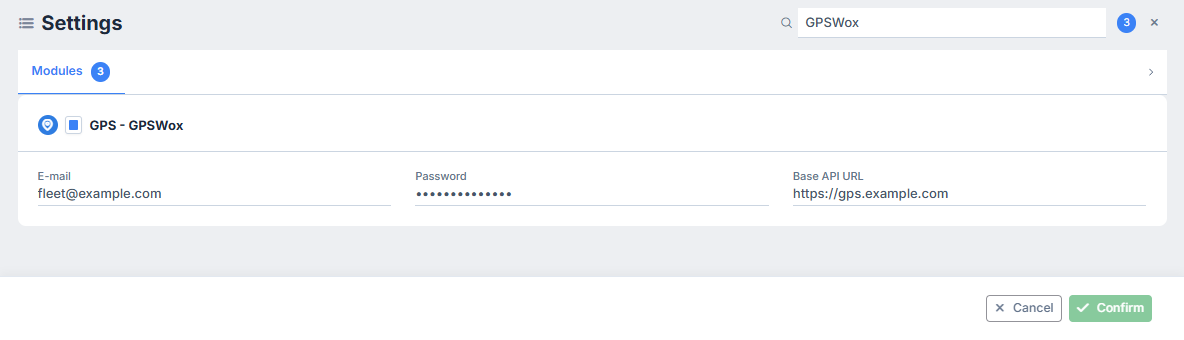
- Go to Administration → Code book → Settings and open the Modules tab. Typing "GPS" or the provider's name in the search box at the top of the screen shows only the matching panels. The Zubie, Echoes and Rentalmatics panels do not have "GPS" in their names, so search for them by name.
- Click Edit.
- Find your provider's panel, for example GPS - GPSWox, and tick the box in its header. The fields of the panel open and become mandatory (for Navixy only the API Key).
- Fill in the fields from your provider.
- Click Confirm.
The panels GPS - GeoNavi, GPS - MyTracko, GPS - Movolytics, GPS - Smartivo, GPS - NetFrota, GPS - Geotab, GPS - GPSWox, GPS - Navixy and Echoes can be set up by any user who may open the settings. The RENTALMATICS panel, with its Alerts (border crossings, impacts, maintenance) box, and the Zubie credentials in the Zubie "Zinc" panel are visible to Renteon support only, so ask support to set these up.
If your Renteon has several companies, Zubie and Echoes can also be set up for one company: Administration → Code book → Companies (needs the Company editing role; the menu item is shown only when your Renteon has more than one company), open the company and fill in its Zubie "Zinc" or Echoes panel. Mileage and fuel of a car are read with the Zubie or Echoes settings of the company the car belongs to, and with the main settings only for cars that belong to no company, so set the provider up for every company whose cars carry its trackers. The alerts of a company's Echoes account are matched only to that company's cars, and the alerts of the Echoes account in the main settings only to cars that belong to no company. Navixy, Rentalmatics and the other GPS providers are set up in the main settings only. Rentalmatics alerts cover the cars of all your companies, and each alert keeps the company of its car.
As soon as a provider is switched on in the main settings, the GPS button appears on the screens described below. If Zubie or Echoes is switched on only for a company and not in the main settings, the GPS buttons are not shown.
Warning: Switch on only one provider for mileage and fuel. If you leave an old provider switched on after changing to a new one, Renteon keeps asking the old one when it comes first in the order described above, and the GPS button keeps returning old or no readings.
Link a car to its tracker
Which car field links the car to the tracker depends on the provider:
- Registration plate (MyTracko, Movolytics, GPSWox, Navixy, Echoes): the Registration plate number on the car's Basic tab must match the provider.
- VIN (Smartivo, Geotab, Zubie, and Navixy when no plate matches): the Chassis number (VIN) on the Basic tab must match the provider.
- IMEI (GeoNavi, NetFrota, and GPSWox and Navixy as a fallback): the tracker must be recorded on the car's GPS tab.
- Rentalmatics needs nothing, for readings or for alerts.
Even when your provider does not use the IMEI, it is worth recording every tracker on the GPS tab: it gives you a history of the devices, their costs and the GPS report. To record a tracker:
- Go to Fleet → Fleet → Cars and open the car.
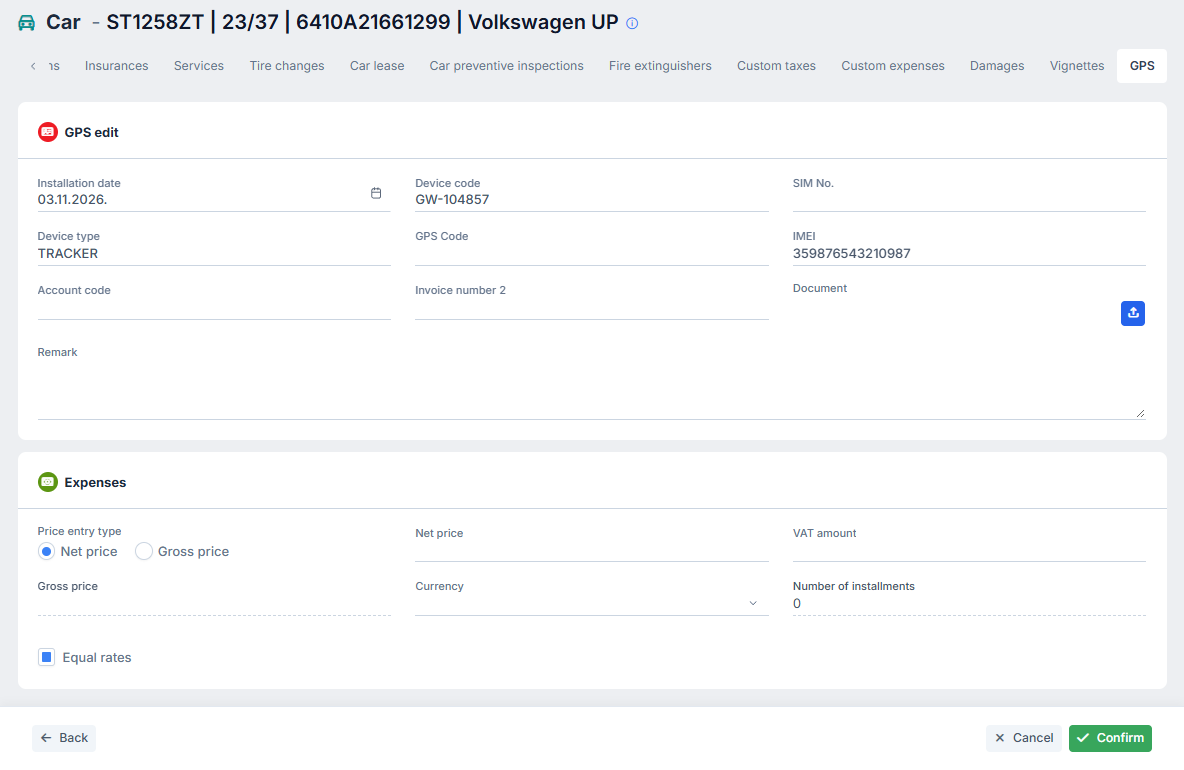
- Open the GPS tab and click Add.
- In the GPS edit section fill in:
- Installation date (mandatory): when the device was fitted.
- Device code (mandatory): the device's code or serial number.
- IMEI: the device's IMEI number. This is the field GeoNavi and NetFrota use, and GPSWox and Navixy when they cannot find the car otherwise.
- SIM No., Device type, GPS Code, Account code, Invoice number 2, Document and Remark: for your own records. They are not used by the providers, but you can filter the GPS report by device type and account code.
- Optionally enter the cost of the device in the Expenses section. Once you enter an amount, the currency and at least one instalment are needed as well.
- Click Confirm.
All codes are changed to capital letters as you type. You need the Fleet management role to add or change GPS records.
The Device code of the car's newest GPS record (by installation date) is copied into the GPS number field on the car's Basic tab. A GPS number can belong to one car only: if another car already has the same number, Renteon refuses to save and names that car. Remove the number from the other car first.
When you replace a tracker, add a new GPS record with the new installation date and the new IMEI instead of overwriting the old one. GeoNavi and NetFrota use the IMEI of the most recently added record, and you keep the history of both devices.
Fill in mileage and fuel from GPS
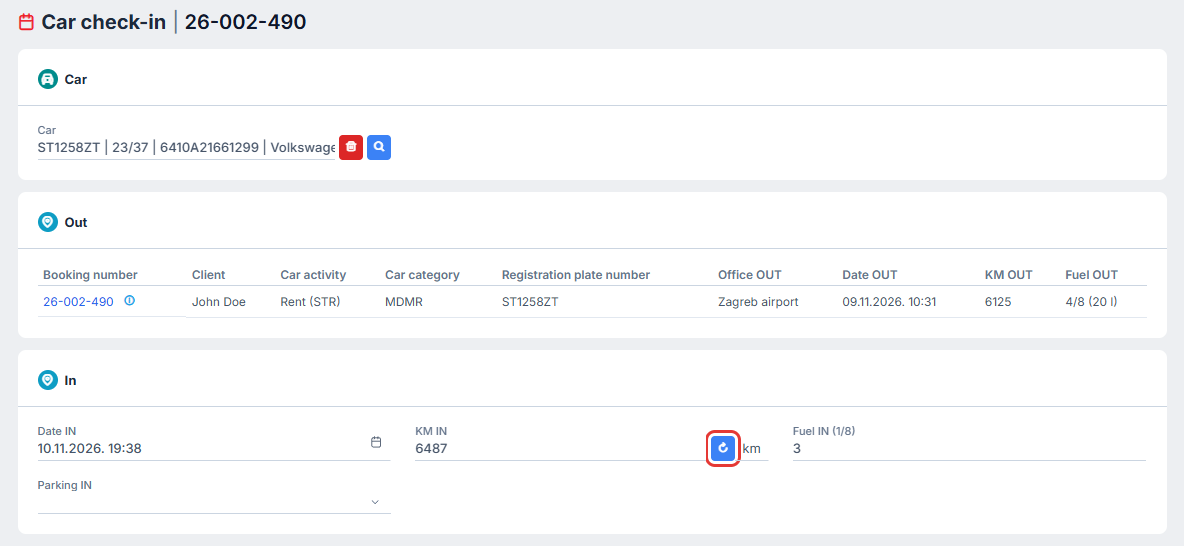
Wherever the return mileage of a car is entered, a round-arrow button with the tooltip GPS stands next to the mileage field. Click it and Renteon asks the provider for the car's current reading:
- Sales → Bookings → Car check-in: next to KM IN.
- Close contract (from the booking's Actions menu): next to the mileage of each car activity of the contract.
- Vehicle replacement (from the booking's Actions menu): next to KM IN of the car being returned.
- Update mileage (from the booking's Actions menu while the car is out): only on bookings with Allow monthly price entry, see Long-term rentals.
- A car activity (Fleet → Fleet → Cars, open the car, Car activities tab, open the activity): next to KM IN while you edit an activity type that records mileage and fuel.
- The car's Services tab: the button with the tooltip Mileage update next to Mileage while you edit a service. If the Date of service is today, the mileage comes from the provider. For any other date it is taken from the car's activities on that day.
The button fills in KM IN and, if the provider reports it, the fuel level. Nothing is saved yet: check the values, complete the rest of the screen and save as usual. You can still overwrite what the provider delivered, for example after a tracker was swapped. Look at the fuel field in particular: on Vehicle replacement, Update mileage and in a car activity, a provider that reports no fuel value empties the field, and Echoes fills in 0/8 when it has no fuel value for the car.
Fuel is recorded in eighths of a tank, as in the Fuel IN (1/8) field. A level in percent or in litres is converted to eighths and rounded down: 60 % of the tank is 4.8 eighths and becomes 4/8, and so do 30 litres in a 50-litre tank. A full tank stays 8/8.
The button fills only the fuel field. The Electricity IN (1/8) field of an electric car or a plug-in hybrid is always entered by hand, even with Zubie and Rentalmatics, which report the battery level.
With NetFrota the provider reports the distance driven during the rental, so KM IN becomes KM OUT plus that distance. If a car left with 42,300 km and NetFrota reports 1,250 km driven, KM IN is filled with 43,550. Renteon asks NetFrota for the distance up to the return time on the screen, so this works on Close contract, Update mileage and in a car activity, where that time is filled in. On Car check-in the return time is not passed on, so NetFrota gives no reading there, and on Vehicle replacement Renteon asks for a period that starts and ends at the replacement time, so the distance is 0 or missing. Enter the mileage by hand on these two screens.
If the provider has no reading for the car, a Record not found warning appears and the fields stay as they were. With Smartivo, Smartivo's own message is shown instead. On Update mileage no warning appears; the fields just stay as they were. If the provider finds the car but has no odometer value for it, for example a tracker without an odometer sensor, KM IN is emptied without a warning, so enter it by hand.
The Car overview shows the mileage and fuel recorded in Renteon's car activities, not a live reading from the provider.
Daily mileage of running contracts
For open contracts, Renteon can work out how much each customer drives per day, using the current odometer from the provider. This is useful for long-term rentals with a mileage limit.
- Go to Sales → Bookings → Search.
- In the filter, select only contracts in Type and set Closed to No, add any other filters you need and search. If Type is empty or contains anything other than contracts, or Closed is set to Yes, the export stops with the message "Please, select open contracts only". If you leave Closed empty, closed contracts are exported too, and their averages are counted up to today, which makes them meaningless.
- Click Actions and choose Bookings averages. The option is there only when a GPS provider is switched on.
You get an Excel file with one row per contract that has already been picked up: Booking number, Total mileage, Total hours, Total days (hours since pick-up divided by 24) and Average (mileage/days). The total mileage adds up the distance driven in the contract's car activities that already have both KM OUT and KM IN and, for the car the customer has now, the provider's current odometer minus that car's KM OUT. For example, a customer who drove 2,100 in a first car and has driven 900 so far in the replacement car, 30 days after pick-up, has a total of 3,000 and an average of 100 per day. If the provider has no reading for the current car, the average stays empty.
The export needs the Booking export role. It works with GeoNavi, MyTracko, Movolytics, Smartivo, GPSWox, Navixy and Rentalmatics. With NetFrota, Geotab, Zubie and Echoes the averages of running contracts stay empty, because these providers cannot deliver the readings of many cars at once.
Vehicle alerts from Zubie, Echoes and Rentalmatics
When Zubie or Echoes is switched on, or Renteon support has switched on the Rentalmatics alerts, Renteon collects the vehicle alerts of these providers every 14 minutes. The first time, it looks about a week back (five days for Echoes geofence alarms). Rentalmatics is asked about the last seven days at most on every run, and alerts Renteon already has are skipped.
- Zubie: smoke detected (Smoke detection), a maintenance event (Maintenance), arrival at or departure from a geofence (Border crossing, with the name of the geofence) and an impact (Collision).
- Echoes: geofence alarms when entering or leaving an area (Border crossing), maintenance alerts (Maintenance) and crash alerts (Collision). Only alarms that are enabled in Echoes are collected. Other enabled Echoes alarms are saved with the general type External alert.
- Rentalmatics: an impact (Collision, with its severity and probability when Rentalmatics sends them), entering or leaving a country (Border crossing, with the name of the country) and vehicle alarms, including a low car battery (Maintenance, with the name of the alarm). There are no smoke alerts from Rentalmatics.
Rentalmatics reports border crossings only as a number of entries and exits per contract and country, without a time or a position. Each new entry or exit therefore becomes an alert dated when Renteon first collects it, not when the car crossed the border, and has no position. When the alerts are first switched on, the crossings Rentalmatics already reports for contracts with a crossing in the past week all get the date of that first collection. Only countries count, and only on contracts Renteon has sent to Rentalmatics. Zubie and Echoes border crossings carry their own time and, when the provider sends it, their position.
Each Zubie and Echoes alert is matched to the car, by VIN or by plate as described above, and to the car activity that was running at the time of the alert. Rentalmatics alerts are matched by Renteon's own car identifier (an impact that comes without it, by the IMEI Rentalmatics lists for the car, then by the VIN or the plate). A Rentalmatics alert that names its contract (every border crossing, and an impact when Rentalmatics sends the contract number) goes to the car activity of that contract, any other Rentalmatics alert to the activity running at the time. That way you see which booking the car was on when, for example, it crossed into another country. An alert for a vehicle that Renteon cannot match to one of your cars is not saved.
Other telematics systems can also send alerts to Renteon through Renteon's External API. Such a connection uses a separate interface user with the External alerts management role; ask Renteon support if you need it.
To see the alerts, go to Car control → Reports → Car fleet and open External alerts in the Availability group. You can filter by date, alert type, booking number, car activity and car, open an alert's position with Show on map when the alert has one, and export the list to Excel. The report needs the Fleet availability overview role. The list does not show which provider sent an alert. The Geofence column shows the name of the geofence or of the alarm and, for Rentalmatics, the country of a border crossing, the name of an alarm or the severity and probability of an impact; this column is not in the Excel export. The alerts of one car open with the bell button in the car list and the External alerts button on the car, which need the Car activity data management role.
To be told about new alerts, each user opens their user menu in the top right corner, chooses Notifications, subscribes to the External alert notification and selects the alert types they want in its filter; Rentalmatics alerts are Border crossing, Collision or Maintenance. Without at least one selected alert type, no alert is delivered. The notification comes by E-mail or In the program (the bell), as chosen in the subscription. When an alert falls into a car activity, only subscribers who work in the office where that activity started are notified. An alert that falls into no car activity goes to the subscribers who work in the car's own office.
Rentalmatics
Rentalmatics is set up by Renteon support. Besides delivering mileage and fuel, it works the other way too: Renteon sends Rentalmatics its cars, its contracts with their first driver, which car is on which contract, and non-revenue car movements such as transfers, services or washing. Each change is sent a few seconds after it is saved. What could not be sent is tried again every 73 minutes, for up to five attempts in all. Because Renteon sends the cars itself, nothing has to be linked by hand.
The RENTALMATICS panel also has a Default driver, an individual from the address book who is sent to Rentalmatics as the driver when a contract has no driver of its own, and the Alerts (border crossings, impacts, maintenance) box. When support ticks it, Renteon also collects Rentalmatics impacts, border crossings and vehicle alarms every 14 minutes as vehicle alerts, as described above.
Mileage update by the customer
For long-term contracts without telematics, the customer can report the mileage online. Once a month Renteon e-mails the customer a link to the online check-in page, where they see the car, the last known mileage and its date, enter the new mileage and add a photo of the odometer. Both the mileage and the photo are mandatory.
To set it up:
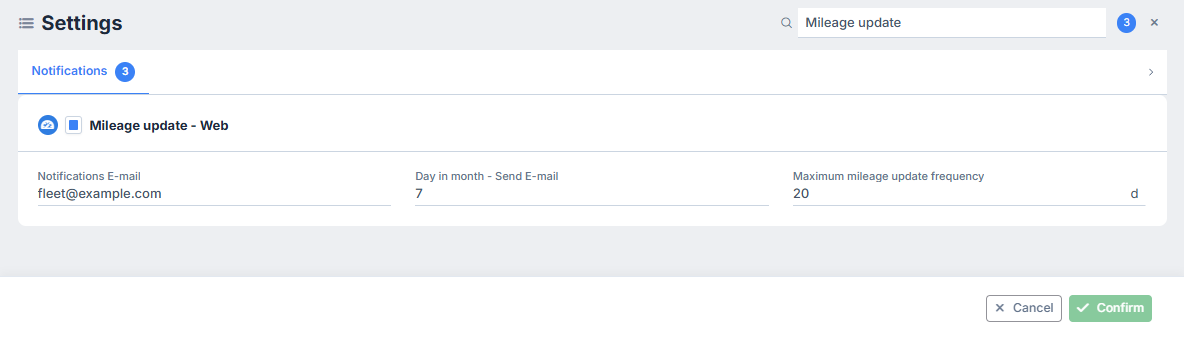
- Go to Administration → Code book → Settings, open the Notifications tab and click Edit.
- Tick Mileage update - Web in the panel header.
- Fill in:
- Notifications E-mail: who is told when a customer has entered a new mileage. If it is empty, Renteon uses the e-mail address of the user who created the booking, then that of the pick-up office.
- Day in month - Send E-mail (1 to 28): the day of the month on which the e-mails go out, by your local time.
- Maximum mileage update frequency (1 to 28 days): how many days must pass between two updates of the same contract.
- Click Confirm.
On the chosen day Renteon e-mails every open contract with Allow monthly price entry that has not received this e-mail in the last 25 days, unless Do not send mileage update email is ticked on the booking. The e-mail goes to the customer, or to the address in E-mail (Mileage update) on the booking if one is entered. It uses the mileage update e-mail template, which you can adjust in Administration → Code book → E-mail templates; keep the link to the mileage page in it (in the default template it is the "Online mileage update" link), or the customer has nothing to click. If the template is missing or the contract has no e-mail address, Renteon skips the contract until the next month. For a running contract paid in instalments, the row menu of the booking list also offers Send document by e-mail - Mileage update, to send it by hand at any time.
When the customer submits a new mileage, Renteon closes the car's current activity with that reading at that moment, keeps the fuel level the car left with and starts a new activity for the rest of the contract, exactly as Update mileage in the booking does. The company gets an e-mail with the old and the new mileage, and users subscribed to the Updated car mileage notification are notified.
Renteon refuses an update that looks wrong, and the customer sees an English message:
- An update sooner than Maximum mileage update frequency days after the previous update or after a vehicle replacement: "Last mileage update performed in less than ... days." The first update after pick-up is always allowed.
- A mileage that grew by more than about 10,000 per month since the last reading (about 330 a day): "Entered mileage is too big, please check the mileage and try again." If the last reading was 15 days ago, the new mileage can be at most about 4,900 higher.
The GPS report
Car control → Reports → Car fleet, group Cars, GPS gives you an Excel list of the trackers recorded on the cars' GPS tabs: device type, codes, installation date and cost, with a second sheet for the instalments. It does not contain positions or mileage readings.
You can filter by Installation date - From, Device code, Device type and Account code, and by the usual car fields: Active car, Car category, Car category group, Car fleet and Registration plate number. Tick Last record only to get only the newest tracker of each car, which is the quickest way to see which device is fitted in which car today. The report needs the Reports - fleet role.
If the readings do not come
Check these points in order:
- Is exactly one provider for mileage and fuel switched on in Administration → Code book → Settings, tab Modules, and are its credentials current? A changed password at the provider has to be changed in Renteon too. Zubie, Echoes or Rentalmatics may stay on for their alerts, but the readings always come from the first switched-on provider in the order described above.
- Does the car match the provider? Compare the plate, the VIN or the IMEI in Renteon with the provider's vehicle list, character by character. For MyTracko a different space or hyphen in the plate is enough to miss the car. For Navixy, check the tracker's name or the plate of the vehicle linked to it, and that the tracker is not blocked.
- Is the tracker reporting? Renteon gets only what the provider has. A tracker that has been offline, or a vehicle without an odometer or fuel sensor, gives no or old values.
- Does the fuel look wrong? Check the Fuel tank size on the car's Basic tab for providers that report litres.
- Using NetFrota? On Car check-in and Vehicle replacement the button gives no usable reading, as described above.
- Is the GPS button missing? It appears only when a provider is switched on in the main settings of your Renteon, and only on the screens listed above. On Update mileage it also needs Allow monthly price entry on the booking.
- No alerts from Rentalmatics? Ask Renteon support whether Alerts (border crossings, impacts, maintenance) is ticked in the RENTALMATICS panel.
If everything looks right and the readings still do not come, ask Renteon support to check the connection log for your provider.